How to Compress Images Without Losing Quality: Complete Guide
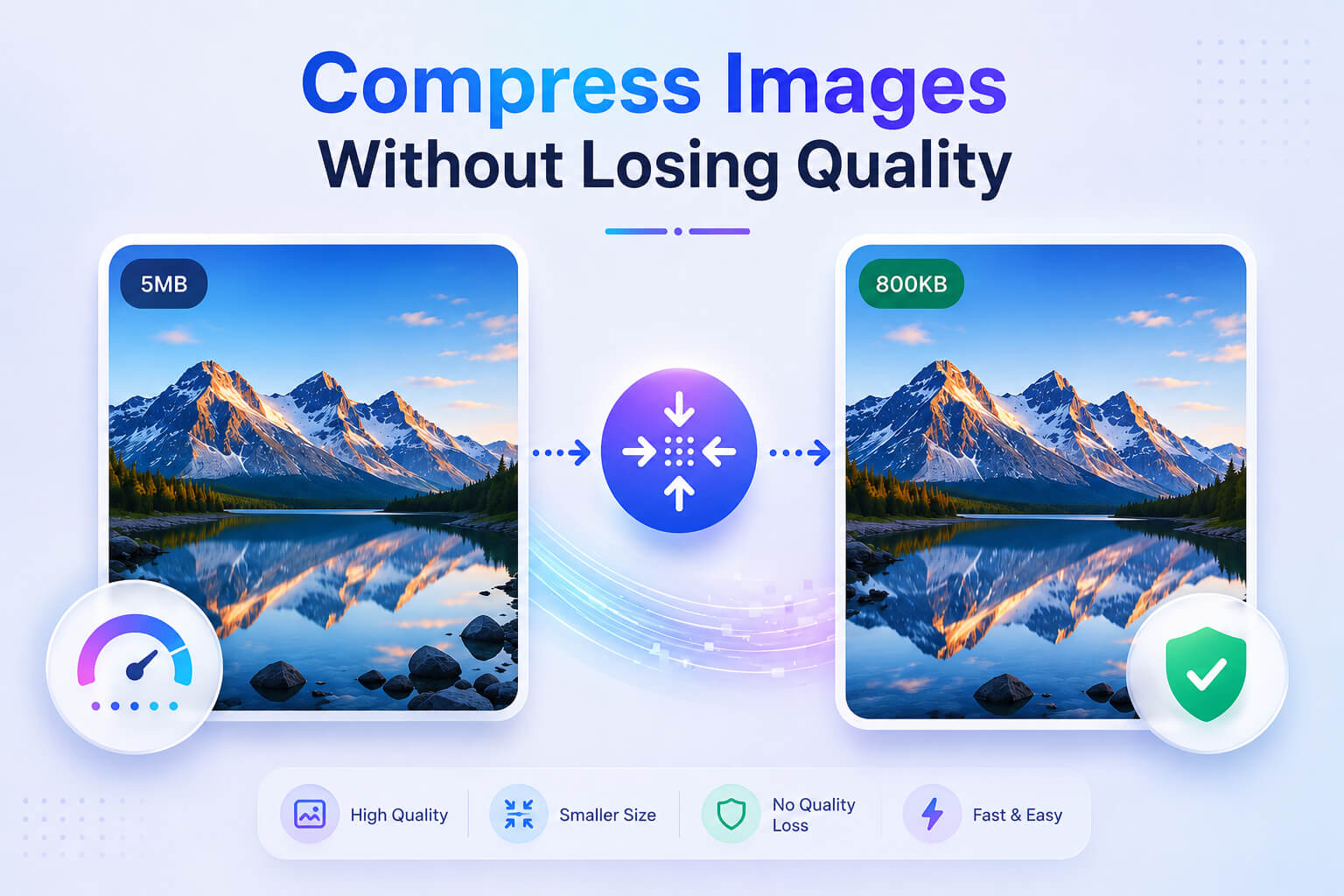
Image compression is essential for website performance, email efficiency, and storage management. But how do you reduce file size without making your images look terrible? This guide covers everything you need to know about image compression techniques.
Understanding Image Compression
Image compression reduces file size by removing unnecessary data. There are two main types:
Best Practices for Image Compression
1. Choose the Right Format
Different formats are suited for different types of images:
- •JPEG: Best for photographs. Supports lossy compression. Doesn't support transparency.
- •PNG: Best for graphics, logos, and images with transparency. Supports lossless compression.
- •WebP: Modern format with excellent compression. Supports both lossy and lossless. 25-35% smaller than JPEG.
- •AVIF: Newest format with best compression. Up to 50% smaller than JPEG. Growing browser support.
2. Resize Before Compressing
Always resize images to their display dimensions before compressing. There's no point uploading a 4000x3000 pixel image if it will only display at 800x600. Resizing first dramatically reduces file size and improves loading speed.
Pro Tip
For retina displays, use 2x the display size. If an image displays at 400px wide, upload it at 800px for crisp visuals on high-DPI screens.
3. Use Optimal Quality Settings
For JPEG compression, quality between 70-85% offers the best balance between file size and visual quality. Most viewers can't distinguish between 80% and 100% quality, but the file size difference is significant.
4. Remove Metadata
Images often contain metadata (EXIF data) including camera settings, GPS location, and timestamps. Stripping this data can reduce file size and protect your privacy.
Recommended File Sizes
| Use Case | Recommended Size |
|---|---|
| Website hero images | 100-200 KB |
| Blog post images | 50-100 KB |
| Thumbnails | 10-30 KB |
| Email images | Under 50 KB each |
| Social media posts | 100-300 KB |
How to Compress Images with OnlinePicTools
Follow these simple steps:
- 1Go to our Image Compressor tool
- 2Upload your images (drag & drop or click to browse)
- 3Adjust the quality slider based on your needs
- 4Preview the result and download your compressed image
Conclusion
Image compression doesn't have to mean sacrificing quality. By choosing the right format, resizing appropriately, and using optimal compression settings, you can achieve significant file size reductions while maintaining excellent visual quality. Use our free tools to compress your images quickly and easily.
Ready to Compress Your Images?
Try our free image compressor - no registration required.
Compress Images Now